
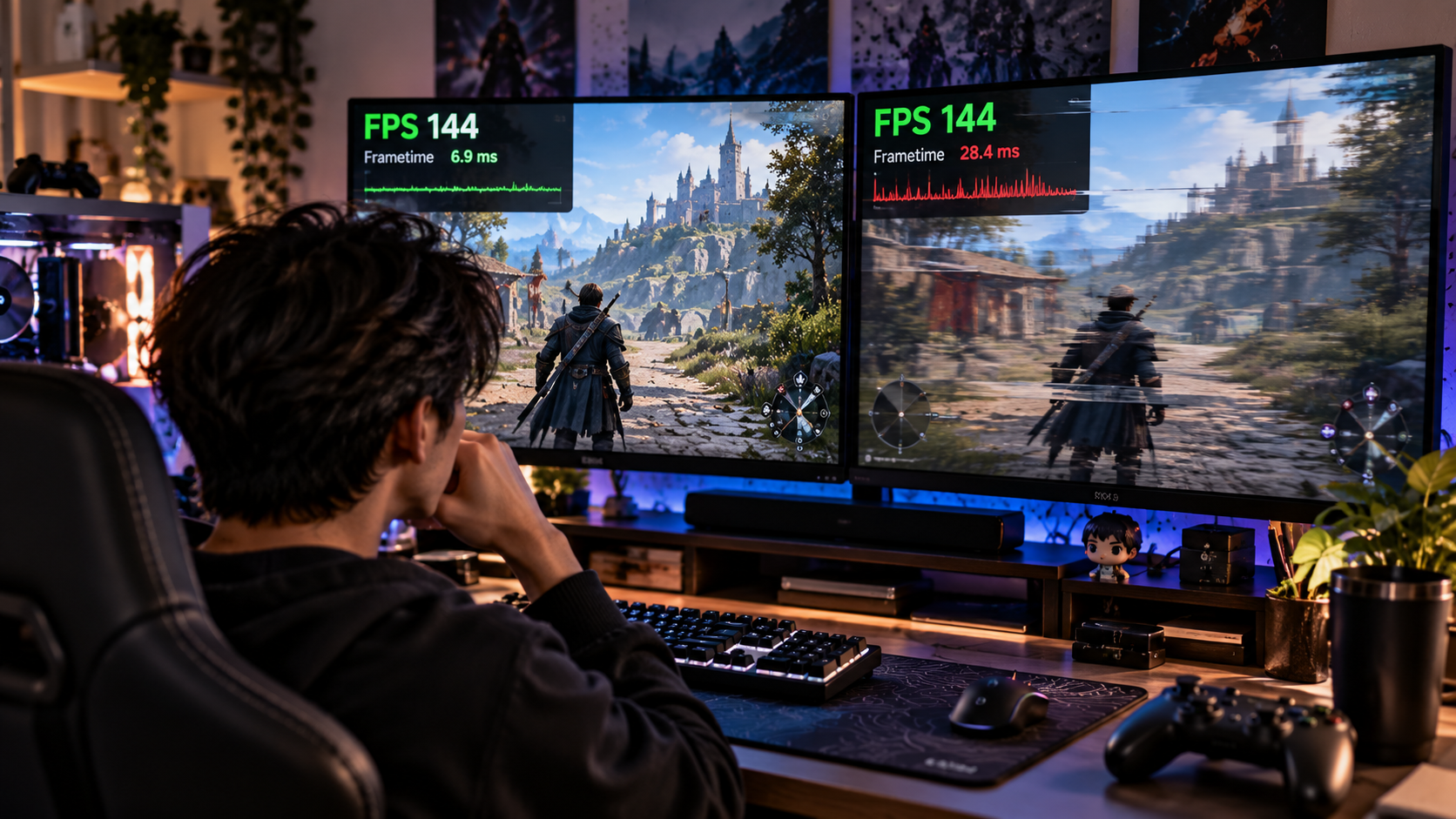
You launch a game, open the performance counter, and everything looks fine.
120 FPS.
144 FPS.
Maybe even 200 FPS.
Your PC should be delivering an extremely smooth experience.
But it does not feel smooth.
The camera occasionally jerks while turning. Movement feels uneven. Entering a new area produces a tiny freeze. Combat suddenly feels rough even though the FPS counter barely changes.
Naturally, you start lowering graphics settings.
Shadows go from Ultra to Medium.
Textures get reduced.
Ray tracing gets disabled.
Your average FPS increases even further.
The game still stutters.
This happens because high FPS but stuttering is not necessarily a contradiction. Frames per second tells you how many frames are being produced over a period of time, but it does not fully describe how evenly those frames arrive.
A game can report excellent average FPS while delivering individual frames inconsistently.
And your eyes can feel those inconsistencies immediately.
Average FPS Can Hide a Bad Experience
Imagine two gaming PCs running the same game.
Both average 120 FPS.
On the first system, frames arrive at relatively consistent intervals.
On the second, most frames arrive quickly, but occasional frames take much longer.
The average may still end up around 120 FPS.
Yet the second system feels noticeably worse.
This is why average FPS should never be treated as the complete measurement of gaming performance.
Consistency matters.
A stable 90 FPS can sometimes feel better than a system constantly bouncing between much higher and lower frame rates.
The FPS number tells you how fast the system is overall.
It does not always tell you how smooth it feels moment to moment.
Frame Time Explains What FPS Cannot
Frame time measures how long the system takes to produce each individual frame.
At 60 FPS, each frame has roughly 16.7 milliseconds available.
At 120 FPS, that falls to around 8.3 milliseconds.
At 144 FPS, it is roughly 6.9 milliseconds.
Now imagine a game running around 120 FPS.
Most frames take approximately 8 milliseconds.
Then suddenly one frame takes 35 milliseconds.
The FPS counter may not appear catastrophic because the surrounding frames are still fast.
But that slow frame remains visible as a hitch.
This is one reason high FPS but stuttering often requires looking beyond the headline FPS number.
The problem may be frame-time consistency rather than raw rendering speed.
A Frame-Time Graph Can Reveal the Real Problem
If your monitoring software provides a frame-time graph, it can be much more informative than watching one FPS number.
A smooth graph generally indicates relatively consistent frame delivery.
Sharp spikes indicate frames that took unusually long to produce.
Those spikes often correspond directly with the hitch you felt while playing.
You turn the camera.
Spike.
Enter another area.
Spike.
An explosion occurs.
Spike.
A new enemy appears.
Spike.
Now troubleshooting becomes easier because you know the problem is not simply “low performance.”
Something is intermittently delaying frame production.
The next question becomes what.
1% Lows Can Be More Useful Than Average FPS
Another useful measurement is the 1% low.
Instead of focusing entirely on the overall average, this metric helps represent performance during the slower portion of gameplay.
Suppose your game averages 165 FPS.
That sounds excellent.
But if your 1% low regularly falls to 55 FPS, the experience can feel far less consistent than the average suggests.
Another system might average only 130 FPS while maintaining a much stronger 1% low.
On paper, the first PC appears faster.
In actual gameplay, the second may feel smoother.
This is particularly important in games where consistent input and camera movement matter more than impressive benchmark numbers.
Not Every Stutter Comes From the GPU
When a game runs badly, graphics settings usually receive the blame.
That makes sense when the GPU is genuinely overloaded.
But stuttering can originate elsewhere.
The CPU.
Memory.
Storage.
Shader compilation.
Asset streaming.
Background applications.
Drivers.
Network behavior in online games.
Thermal limits.
Game-engine behavior.
Even peripheral or overlay software can occasionally contribute.
This is why blindly reducing every graphics option is inefficient.
If the GPU is not the source of the delay, making the graphics uglier may accomplish very little.
CPU Bottlenecks Can Create Uneven Performance
The GPU renders the image, but the CPU handles a large amount of game logic and preparation.
Artificial intelligence.
Physics.
Draw calls.
Simulation.
Animation systems.
World management.
Other calculations.
A game can therefore become CPU-limited even when the GPU still has available capacity.
This is particularly common in games containing large crowds, complex simulation, huge worlds, or extremely high target frame rates.
You may notice the problem most strongly in specific environments.
An empty corridor runs beautifully.
A crowded city stutters.
A quiet part of the map produces 180 FPS.
A large battle suddenly feels inconsistent.
Lowering texture quality may not solve that because textures were never the primary bottleneck.
Overall CPU Usage Can Be Misleading
You check Task Manager.
CPU usage says 55 percent.
“Okay, my CPU isn’t the problem.”
Not necessarily.
Games do not always distribute workloads equally across every available CPU core.
One or several important threads can become heavily loaded while the overall processor utilization still looks moderate.
If a critical game thread cannot finish its work quickly enough, frame production can be delayed.
The average CPU percentage hides that detail.
This is another example of why one headline number rarely tells the entire performance story.
GPU usage, per-core CPU behavior, frame time, memory usage, and the context in which stuttering occurs can provide a much better picture.
GPU Usage Can Give You an Important Clue
Suppose the GPU is consistently operating near its maximum capacity.
Reducing GPU-heavy settings may improve performance.
Resolution.
Ray tracing.
Certain lighting effects.
Volumetric effects.
Some forms of anti-aliasing.
Those changes can reduce rendering load.
But imagine GPU usage repeatedly drops during the exact moments when the game stutters.
That can suggest the GPU is waiting for something else rather than struggling to render.
Maybe the CPU has not prepared the next frame.
Maybe assets are being loaded.
Maybe the engine is compiling something.
Maybe another process temporarily interrupted the workload.
Monitoring behavior during the stutter is more useful than simply checking usage while standing still.
Shader Compilation Can Cause Stutter
Modern games use shaders for many rendering effects.
Before certain shaders can be used efficiently, they may need to be compiled for your hardware and driver environment.
How games handle this process varies.
Some titles perform substantial shader compilation before gameplay begins.
You may see a progress screen when launching the game.
Others compile shaders as needed during gameplay.
That second approach can create noticeable stuttering the first time a new effect, environment, enemy, or visual element appears.
You walk into an unfamiliar area.
Hitch.
A new effect appears.
Hitch.
You repeat the same section.
The hitch becomes smaller or disappears.
That pattern can indicate shader-related stuttering rather than insufficient average performance.
This Is Why Some Games Stutter More on the First Run
Players occasionally report something strange:
“The game stuttered terribly when I first entered this area, but the second time was much smoother.”
That can happen when data or compiled shaders become cached.
The first encounter requires additional work.
Later encounters can reuse information already prepared.
This is also why clearing caches without a reason can sometimes temporarily make certain behavior worse.
The system may need to rebuild information that had already been prepared.
Not every cache should be treated as digital garbage.
Some caches exist specifically to avoid repeating expensive work.
Driver Updates Can Temporarily Change Shader Behavior
You update the graphics driver expecting everything to become better.
Then one game suddenly stutters during the first session.
That does not automatically mean the new driver is bad.
Depending on the game, driver, and cache behavior, shaders may need to be rebuilt or compiled again.
Performance can therefore differ immediately after certain updates.
If the stuttering decreases after playing for a while, shader compilation may have contributed.
If it continues consistently, then further investigation makes sense.
The important point is not to assume causation from one short test.
Observe the pattern.
Asset Streaming Can Produce Hitches
Large modern games do not necessarily load the entire world into memory before gameplay begins.
That would be impractical.
Instead, assets can be streamed as needed.
Textures.
Geometry.
Audio.
Animations.
Environmental objects.
Other data.
As you move through the world, the game continuously prepares what you are about to encounter.
If something delays that process, you may experience a hitch.
This is why some open-world games stutter primarily while travelling quickly through the map but behave normally when standing still.
The workload changes as the player moves.
Storage Speed Can Matter
Asset streaming makes storage relevant.
An SSD does not automatically eliminate every stutter.
But games designed around frequent data streaming can behave differently depending on storage performance and system configuration.
Installing a demanding modern game on very slow storage can create loading and streaming limitations.
Storage also becomes more complicated when it is nearly full, heavily occupied by other activity, or experiencing problems.
Again, context helps.
If the game stutters mainly when loading new areas, storage and asset streaming deserve more attention than if it stutters continuously while standing in an empty room.
RAM Capacity Can Become a Problem
A game uses system memory.
So does the operating system.
So does your browser with 35 tabs open.
Discord.
Launchers.
Streaming software.
Recording tools.
RGB utilities.
Antivirus software.
Background services.
Eventually, available memory can become limited.
When the system experiences memory pressure, performance may become less predictable.
This does not mean every gamer needs enormous amounts of RAM.
It means your actual workload matters.
A PC used only for gaming has different memory requirements from a PC simultaneously running the game, browser, OBS, editing tools, Discord, and multiple background utilities.
VRAM Is Different From System RAM
Graphics cards have their own memory known as VRAM.
Games use VRAM for textures, frame buffers, geometry data, and other graphics-related resources.
High-resolution textures can consume significant amounts.
So can higher resolutions and certain advanced graphics settings.
If a game exceeds comfortable VRAM limits, data may need to be managed more aggressively between different memory pools.
That can contribute to poor performance or stuttering in some situations.
This is one reason texture settings deserve special attention.
Reducing texture quality may not dramatically increase average FPS when VRAM usage is already comfortable.
But if VRAM is under pressure, lowering textures can potentially improve consistency.
Ultra Textures Are Not Automatically Better for Every GPU
Players often assume texture quality works exactly like other graphics settings.
Ultra must require much more GPU processing power than High.
The more important constraint can often be memory capacity.
A GPU may have enough processing performance to run the game well but insufficient VRAM for the highest texture package under certain conditions.
That creates a strange situation.
The FPS looks good.
Then traversal produces stutters.
You enter another area and performance becomes inconsistent.
Reducing textures by one level may barely change visual quality while significantly reducing memory pressure.
Do not choose graphics settings based on pride.
Choose them based on the hardware actually available.
Background Applications Can Cause Intermittent Problems
Your PC does not stop doing everything else when a game starts.
Cloud storage may synchronize.
A browser tab may become active.
Windows may perform maintenance.
A game launcher may update another title.
Recording software may encode video.
RGB utilities may poll hardware.
Communication software may process overlays.
Individually, these tasks might be small.
But if one becomes active at the wrong moment, it can interfere with frame consistency.
If a game suddenly starts stuttering after previously running well, check what else is running.
You may discover that the game itself has not changed at all.
Overlays Are Worth Testing
Modern gaming PCs can accumulate a surprising number of overlays.
Platform overlay.
GPU software overlay.
Discord overlay.
Performance monitoring overlay.
Recording overlay.
Modding tools.
Third-party utilities.
Most work perfectly well.
But troubleshooting is about removing variables.
If unexplained stuttering persists, temporarily disabling unnecessary overlays can be a useful test.
Do not assume an overlay is responsible.
Test it.
If nothing changes, turn it back on if you use it.
Good troubleshooting is reversible.
Recording Can Change Performance
You might notice the game feels smooth normally but develops small hitches whenever recording begins.
That provides a strong clue.
Recording gameplay adds another workload.
The system must capture frames, encode video, write data to storage, and potentially process audio simultaneously.
Modern hardware can handle this efficiently, particularly with dedicated hardware encoders.
But settings matter.
Extremely high recording quality, unsuitable encoding settings, or storage contention can affect performance.
If the stutter appears only while recording, investigate the recording pipeline before changing the entire game’s graphics configuration.
Temperature Can Change Performance During Long Sessions
The game feels perfect for the first twenty minutes.
An hour later, performance becomes inconsistent.
That pattern deserves attention.
As components heat up, CPUs and GPUs adjust frequency and power behavior to remain within safe operating limits.
A properly cooled system should manage this without severe problems.
But poor airflow, dust buildup, inadequate cooling, aggressive overclocks, or unusually high ambient temperatures can create thermal limitations.
Monitor temperatures and clock behavior over time.
If stuttering appears only after the system becomes hot, the timing is valuable evidence.
Unstable Overclocks Can Look Like Game Problems
An overclock does not need to crash the computer immediately to cause trouble.
Marginal instability can produce unusual behavior.
The same applies to undervolting and memory tuning.
A configuration may appear stable in one game and fail in another because different workloads stress hardware differently.
If you have aggressively tuned your CPU, GPU, or RAM and unexplained performance problems begin, test the system at known-stable settings.
This is particularly useful when everyone else seems to run the same game normally on similar hardware.
Sometimes the mysterious optimization problem is actually a stability problem.
RAM Configuration Can Affect Gaming Performance
Memory capacity is only one aspect of RAM.
Configuration matters too.
A system running memory in an unintended configuration may deliver lower performance than expected.
This can become particularly noticeable in CPU-limited games.
Likewise, installing high-speed memory does not necessarily mean it is automatically operating at its advertised performance profile.
System firmware settings and platform support matter.
You do not need to become a memory-overclocking expert.
But if a newly built PC performs significantly below comparable systems, confirming that the memory is installed and configured appropriately is a reasonable troubleshooting step.
V-Sync Can Change How Performance Feels
V-Sync attempts to coordinate frame presentation with the display’s refresh cycle to reduce tearing.
Depending on the configuration and performance level, it can also affect latency and frame pacing.
This is why turning V-Sync on or off can dramatically change how a game feels even if the average FPS appears similar.
The correct choice depends on your display, game, performance, and whether variable refresh technology is available.
Do not treat V-Sync as universally good or bad.
Understand the problem you are trying to solve.
Screen tearing and stuttering are not the same thing.
A setting that fixes one does not automatically fix the other.
Variable Refresh Rate Can Improve Perceived Smoothness
Technologies such as variable refresh rate allow compatible displays to adjust their refresh behavior to the frame rate being delivered within supported ranges.
This can make fluctuating frame rates feel smoother and reduce tearing.
But VRR cannot repair every form of stutter.
If one frame suddenly takes dramatically longer because the CPU stalls or the game compiles a shader, the delay still exists.
The monitor cannot create the missing work.
VRR helps presentation.
It does not eliminate the underlying cause of severe frame-time spikes.
That distinction prevents unrealistic expectations.
Your Monitor Refresh Rate Should Actually Be Configured Correctly
This sounds basic, but it happens.
Someone buys a 165Hz or 240Hz gaming monitor.
They connect it.
They play at high FPS.
Months later, they discover the operating system has been running the display at 60Hz.
High FPS can still have benefits related to latency, but the visual experience will not match what the high-refresh monitor can provide when configured correctly.
Check the display settings.
Make sure the expected refresh rate is selected.
If you recently changed monitors, cables, ports, graphics cards, or reinstalled the operating system, verify it again.
Never assume configuration survived a hardware or software change.
An Uncapped Frame Rate Is Not Always the Smoothest Choice
More FPS sounds automatically better.
Sometimes it is.
But forcing the GPU to operate at maximum capacity continuously can leave little performance headroom when a scene suddenly becomes more demanding.
Suppose your system fluctuates between 130 and 190 FPS.
Allowing it to run completely uncapped may produce constant variation.
Setting a sensible frame-rate cap that the system can maintain more consistently can sometimes produce a smoother experience.
For example, a stable 120 FPS may feel better than constantly moving between 125 and 190 FPS with occasional dips.
The best cap depends on the game, monitor, system, and latency requirements.
The principle is simple:
Consistency can matter more than chasing the highest possible number.
Competitive Games Are a Different Case
In competitive shooters, extremely high frame rates can reduce input latency and provide other responsiveness benefits.
Players may intentionally prioritize maximum FPS even if the system is not perfectly quiet or efficient.
That is a valid goal.
But even competitive players benefit from consistent frame delivery.
A sudden frame-time spike during a gunfight is far more disruptive than the difference between two already-high average frame rates.
So performance tuning should not become:
“How can I make the FPS counter show the biggest number?”
A better question is:
“How can I achieve high performance without disruptive drops and spikes?”
Network Lag Can Feel Like Stuttering
Not every apparent stutter is graphical.
In online games, poor network conditions can create movement that looks jerky.
Enemies teleport slightly.
Your character snaps backward.
Actions register late.
Movement feels inconsistent.
The FPS counter remains perfectly stable because rendering was never the problem.
This is why distinguishing performance stutter from network lag matters.
If the entire image freezes briefly, think about system performance.
If other players move unpredictably while your camera remains smooth, network conditions become more suspicious.
Check latency, packet loss, and server behavior before rebuilding your PC.
Mouse Behavior Can Sometimes Mimic Performance Problems
You move the mouse and camera motion feels strangely inconsistent.
The immediate assumption is GPU stutter.
But input itself can occasionally be involved.
Wireless interference.
Extremely high polling configurations interacting poorly with particular games or CPUs.
Problematic software.
A failing peripheral.
A dirty sensor.
A poor surface.
These cases are less common than ordinary performance bottlenecks, but they demonstrate why troubleshooting should isolate the symptom.
Does the game stutter even when you are not moving the mouse?
Does controller movement show the same problem?
Does keyboard movement produce identical frame-time spikes?
Testing changes the problem from a feeling into evidence.
Mods Can Transform Performance
Modding is one of PC gaming’s biggest strengths.
It can also complicate troubleshooting enormously.
High-resolution texture packs increase memory usage.
Lighting mods increase GPU load.
Script-heavy mods increase CPU workload.
Large mod collections can introduce conflicts.
A game that performs badly with 150 modifications installed cannot immediately be compared with benchmarks of the unmodified game.
If performance deteriorates after adding mods, test the original configuration.
That does not mean you need to abandon modding.
It means you need a baseline.
Without one, you cannot know whether the problem is the game, hardware, or modification stack.
Updates Can Introduce New Stutter
A game ran perfectly last week.
Today an update installs.
Now traversal stutters.
That happens.
Game updates can change rendering systems, shaders, assets, CPU workloads, memory behavior, or simply introduce bugs.
Likewise, operating-system and driver changes can affect performance.
If a problem appears suddenly, check the timeline.
What changed immediately before the issue began?
Troubleshooting becomes much easier when you can identify a clear before-and-after point.
Randomly replacing hardware should not be the first response to a problem that appeared immediately after a software update.
Sometimes the Game Itself Is the Problem
This is important.
PC gamers often assume every performance issue must be fixable through settings.
Not always.
Some games have engine-level stuttering that appears across a wide range of hardware.
A faster CPU may reduce it.
A better GPU may improve other aspects.
An SSD may help streaming.
But the underlying behavior can still remain.
Before spending money on upgrades, check whether other players with substantially different systems report the same type of stutter in the same locations.
If powerful hardware experiences the identical problem, your computer may not be the main issue.
Optimization has limits when the game itself is inconsistent.
Do Not Copy Optimization Guides Blindly
A performance guide tells you to disable ten settings.
Another tells you to edit configuration files.
A forum post recommends deleting caches.
A video asks you to change Windows services.
Someone else says you need custom driver settings.
Soon you have modified so many things that you no longer remember the original configuration.
That makes troubleshooting harder.
Change one category at a time.
Measure the result.
Keep changes that help.
Reverse changes that do nothing.
Optimization without measurement quickly becomes superstition.
Start With a Reproducible Test
Find a location where the stutter happens consistently.
Maybe it occurs when entering a city.
Perhaps turning toward a specific area triggers it.
Maybe a particular combat encounter causes the issue.
Repeat the same sequence.
Now you have a test.
Change one setting.
Repeat.
Did the frame-time spike improve?
No?
Restore the setting.
Try another variable.
This approach is slower than changing everything simultaneously, but it produces actual information.
After several tests, you can begin isolating the cause.
Use a Sensible Troubleshooting Order
When dealing with high FPS but stuttering, start with the easiest observations.
Check whether the stutter occurs consistently.
Look at frame time rather than only average FPS.
Check 1% lows.
Observe CPU and GPU behavior.
Look at RAM and VRAM usage.
Consider whether it happens only while entering new areas.
Think about recent game, driver, or operating-system updates.
Close unnecessary background applications.
Temporarily disable overlays.
Verify temperatures.
Check whether the problem exists in other games.
Then begin adjusting relevant settings.
Do not start by reinstalling the entire operating system.
Troubleshooting should move from simple explanations toward increasingly complex ones.
Compare Multiple Games Before Blaming Hardware
One game stutters.
Five others run perfectly.
That points in a different direction than every game suddenly stuttering.
If the problem occurs only in one title, investigate that game first.
Its settings.
Its shader behavior.
Its patches.
Its mods.
Its engine.
If every demanding game suddenly behaves badly, broader system issues become more plausible.
Drivers.
Temperatures.
Background processes.
Hardware stability.
Power configuration.
Testing multiple games gives you a basic control group.
That information is extremely valuable.
Smoothness Is More Than a Big Number
Gaming performance discussions often revolve around maximum FPS.
Which GPU gets 200 FPS?
Which CPU gets 300?
Which setting adds another 15 frames?
Those numbers are useful for comparing hardware.
But your eyes do not experience an average.
They experience each frame as it arrives.
A game running at 140 FPS with smooth frame delivery can feel excellent.
A game averaging 190 FPS with constant frame-time spikes can feel terrible.
This is why performance should be evaluated as an experience, not just a benchmark.
Average FPS matters.
Frame times matter.
1% lows matter.
Latency matters.
Display configuration matters.
And consistency ties all of them together.
Conclusion
Seeing a high FPS counter while a game visibly stutters can be confusing, but the two things can exist at the same time.
Average FPS measures overall frame production.
It does not guarantee that every frame arrives consistently.
When dealing with high FPS but stuttering, frame-time spikes and weak 1% lows can reveal problems that average FPS hides completely.
The cause may be CPU limitations, shader compilation, asset streaming, memory pressure, VRAM limits, storage activity, background software, overlays, recording, temperature, unstable hardware settings, or even the game engine itself.
And sometimes what feels like graphical stutter is actually network or input behavior.
That is why lowering every graphics setting should not be the automatic solution.
Measure first.
Find a repeatable problem.
Watch what happens when the stutter occurs.
Change one variable at a time.
The goal is not simply to make the FPS counter larger.
It is to make the frames arrive consistently enough that you stop thinking about the counter at all.