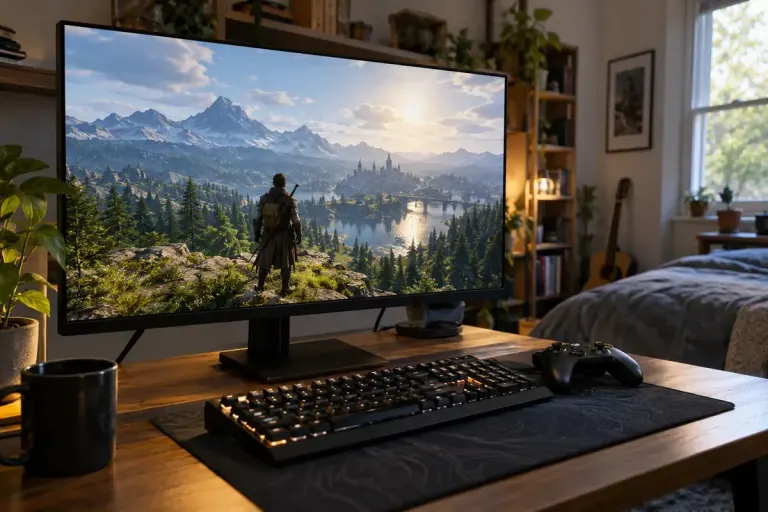
Dynamic resolution changes render load while the display stays the same
Dynamic resolution can change a game’s internal render size without changing your monitor. Learn what to compare when judging image quality and performance.
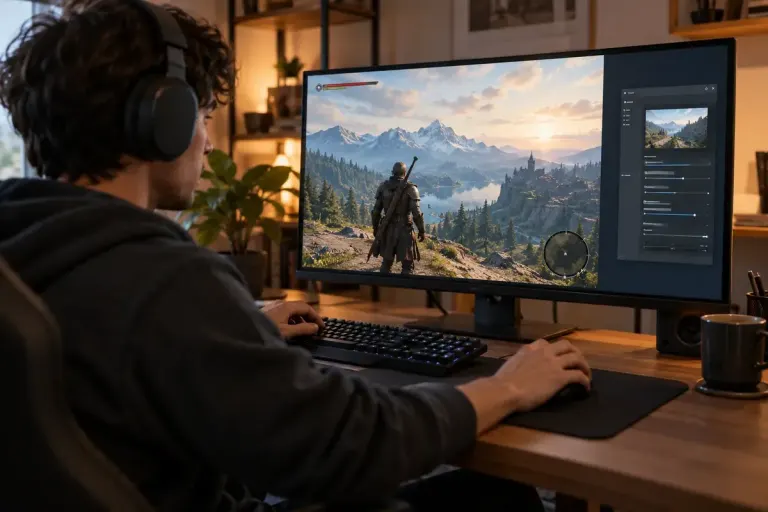
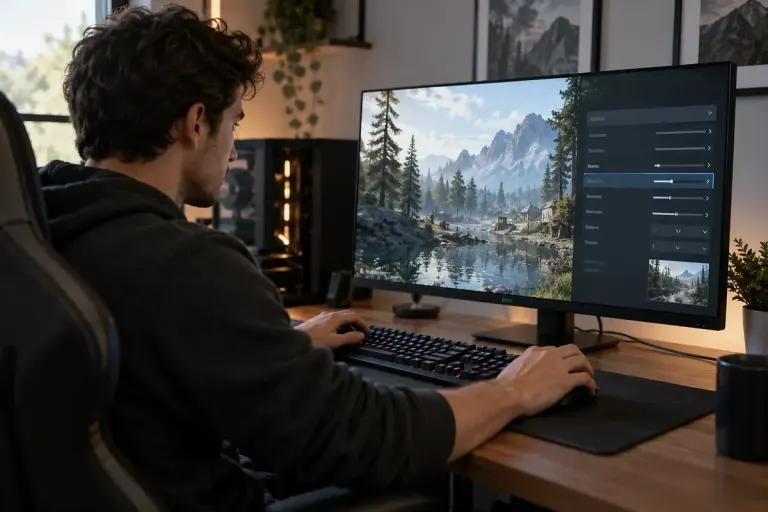
Dynamic resolution can change a game’s internal render size without changing your monitor. Learn what to compare when judging image quality and performance.
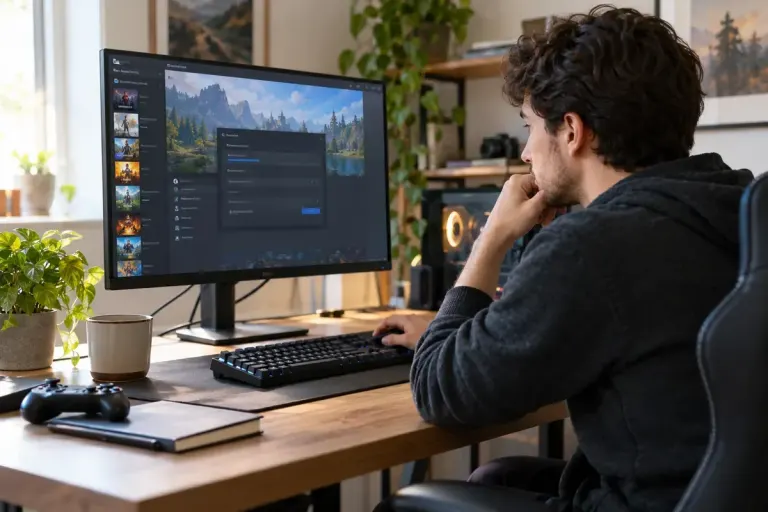
Understand borderless windowed mode, compare it with fullscreen on your own PC and avoid treating one display mode as a universal performance fix.

Test a frame-rate limit against a repeatable game scene and judge consistency as well as the highest FPS number.

Use Steam’s file verification to check an installed game’s files, then decide whether a reinstall is actually the next useful step.

Understand shader preparation as one possible source of game stutter, then record useful symptoms without deleting caches or changing everything at once.

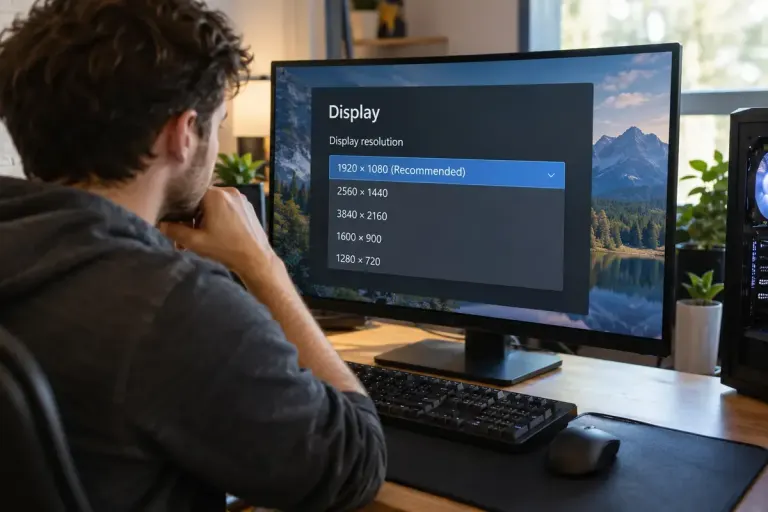
Check display and game resolution before adjusting every graphics option, and distinguish sharpness, interface scaling and rendering workload.

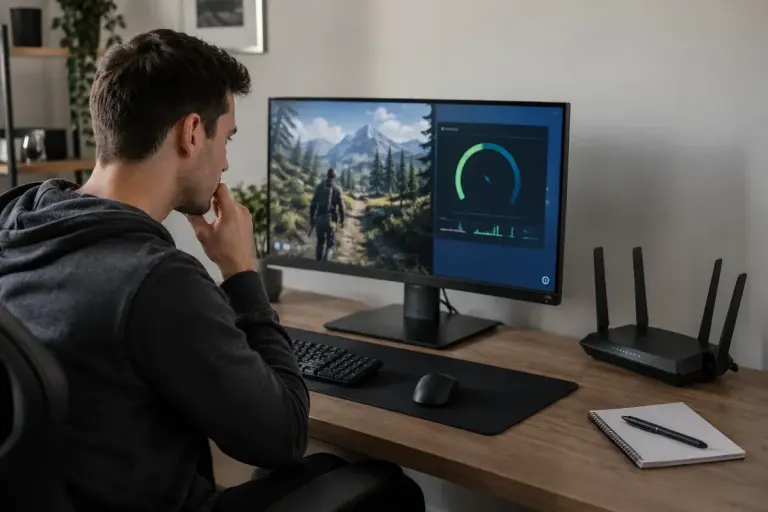
Choppy frames and delayed network updates can feel similar. Use the game’s performance indicators to separate rendering trouble from connection trouble.

Check cloud support, local saves and sync status before moving a game between devices, with a simple record of your latest progress.