
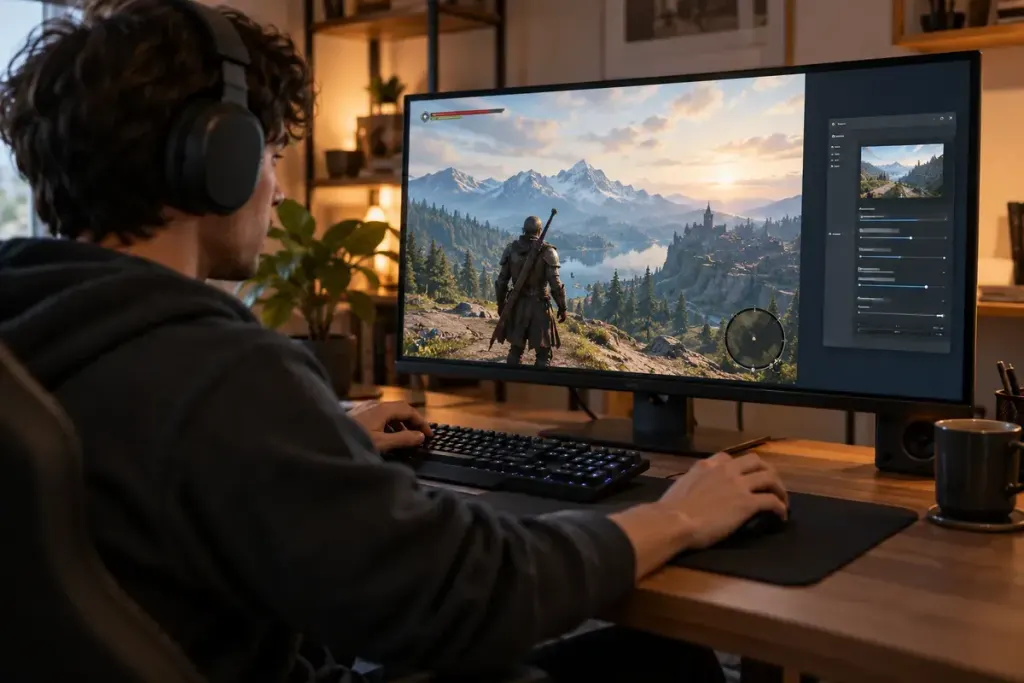
A game can fill the whole screen while still running in a window. Borderless windowed mode removes the visible frame and title bar, making the game look fullscreen while remaining part of the desktop’s windowed environment.
The practical appeal is often switching between the game and other applications. But the effect on latency, frame pacing, HDR and variable refresh depends on the game, operating system and display setup. “Windowed is always slower” is too broad to guide a modern PC.
Microsoft documents Windows 11 optimisations for compatible DirectX 10 and 11 games in windowed and borderless modes. These can change the presentation method and enable features on supported hardware. That does not mean every game or Windows version behaves identically.
Compare two modes without changing everything else
- Choose a repeatable scene or built-in benchmark, with the same resolution and graphics settings.
- Note the current fullscreen mode, frame limit and synchronisation settings.
- Test borderless mode, restarting the game if the game or operating-system setting requires it.
- Check switching applications, returning focus and using the display features you care about.
Watch for stutter and inconsistent input response as well as an average frame-rate number. A menu running at hundreds of frames per second says little about a demanding section of play.
Keep a route back
If a change causes trouble, restore the recorded setting before trying another adjustment. Changing display mode, driver options, resolution and frame caps together makes it difficult to identify the cause of an improvement or regression.
On a multi-monitor setup, also check where the mouse goes and whether a click outside the game changes focus. Borderless mode may suit frequent desktop switching, while another mode may fit a particular game better. Choose from a controlled comparison on your system, rather than from a blanket promise attached to the setting’s name.