
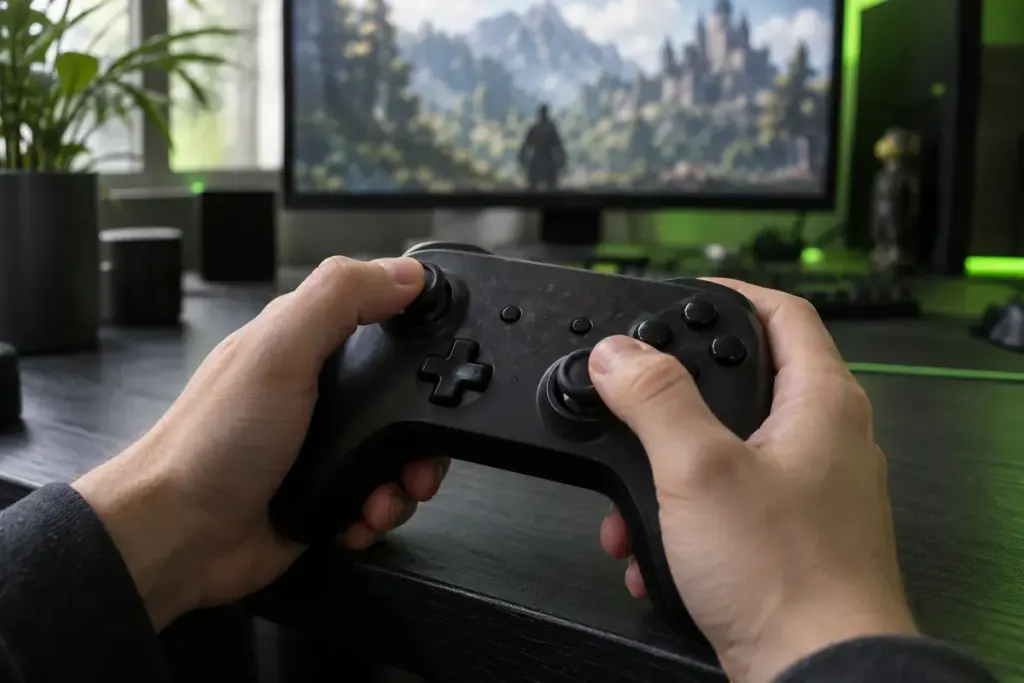
You put the controller down and the camera keeps creeping sideways. Increasing a setting might stop it, but changing several sliders at once makes it difficult to know which one mattered. A short, repeatable check gives you a clearer starting point.
A dead zone is an area of stick movement that is ignored before input affects the game. Sensitivity changes how strongly accepted input responds. They can interact, but they answer different questions: when does movement begin, and how quickly does it build?
Record what happens with your hands off
Choose a safe practice area or a menu that displays controller input, when the game provides one. Put the controller on a stable surface, release the sticks and observe. Note the game, connection method and whether the behaviour affects the camera or movement.
Do not diagnose a hardware fault from one game alone. An input mapping, game setting or device problem may produce similar symptoms. If a second compatible game or an official controller test offers a comparison, record the result without changing your first set of settings.
Change one variable and keep the old value
Find the game’s own explanation for its dead-zone setting. Some games expose separate controls for inner and outer behaviour, while others use a simplified slider. Names and scales are not universal, so a number copied from another player’s guide may not mean the same thing on your setup.
Valve’s Steam Input source-mode documentation shows that input configuration can involve several processing choices. This is why it helps to identify whether you are adjusting the game, an input layer or a device profile before making changes.
Write down the starting value, make a small adjustment, then repeat the same hands-off observation. If the unwanted motion stops, test a slow deliberate movement as well. A setting that hides drift may also make small aiming movements feel less responsive.
Use a short comparison you can repeat
Try this illustrative three-part note: “At rest: camera still. Slow movement: begins after a noticeable push. Normal turn: comfortable.” That is more useful than “better” because it records the trade-off you actually experienced.
Repeat with the same practice scene and similar camera position. Avoid judging changes during a competitive match, where movement, connection quality and pressure make comparisons inconsistent. There is no need to search for one supposedly perfect number.
Know when a settings experiment has reached its limit
If the controller behaves erratically across supported tests, consult the manufacturer’s support instructions. Check warranty or repair options before opening the device. Do not spray cleaners into it or force the stick based on an unrelated repair video.
Keep your notes with the controller model and the date. They can help explain the symptom to support and make it easier to restore the original configuration. If you also changed an accessibility or remapping profile, record that separately.
The goal is a control setup you understand. When a setting solves one problem but creates another, you now have enough information to reverse it, compare alternatives and decide whether the next step belongs in a menu or with device support.