
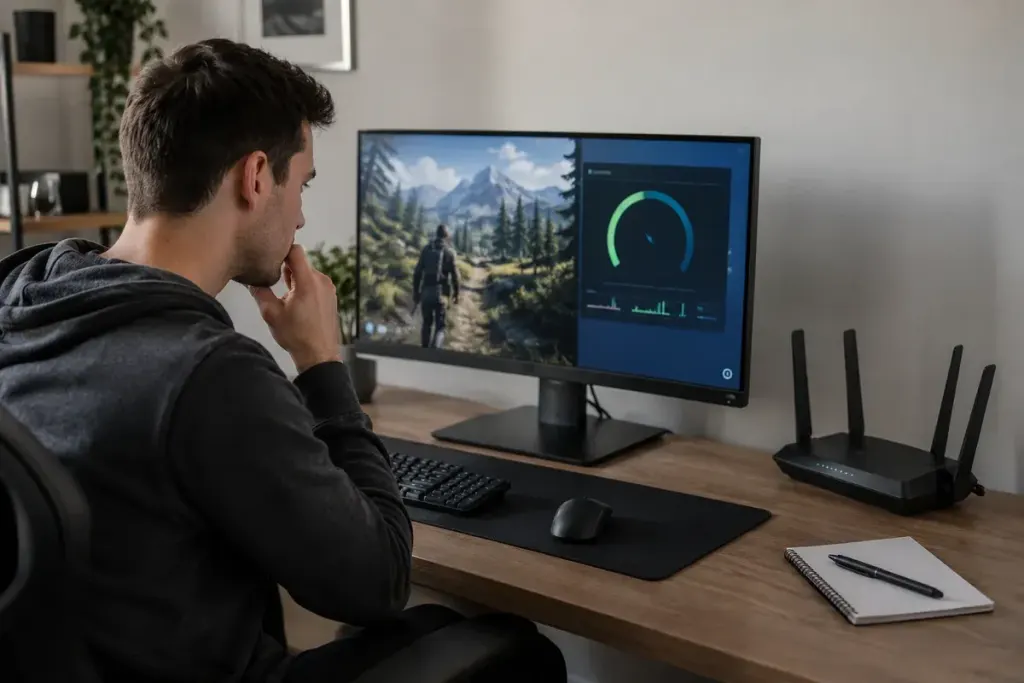
Your character stutters, an opponent jumps across the screen and the game feels unresponsive. “Lag” describes the frustration, but it does not identify the cause. Buying a faster router will not fix every low-frame-rate problem, and lowering texture quality will not necessarily improve a delayed server connection.
Begin by separating what your machine renders from how information travels between it and the game server. More than one problem can occur at once, so aim for a useful observation rather than an instant diagnosis.
Look at the right indicators
Frame rate describes how many frames are being produced. Frame-time behaviour helps show uneven delivery. Ping measures network round-trip time, while packet loss or similar indicators describe missing or disrupted updates. Their units and meanings differ.
Valve’s Source 2 telemetry guide explains the distinction for supported games. Use the documentation for your actual game, because overlay labels and available measurements vary.
Create a comparison you can repeat
Choose a familiar scene or training area and note what happens when the problem appears. If the game supports an offline mode, compare it with an online session while recognising that the scenes and workloads may differ.
Record a few details: game version, display settings, server region, connection type and which indicator changes during a hitch. “The frame-time graph spikes in this scene” gives a support conversation more direction than “Everything is slow”.
Change one plausible factor
For a rendering problem, review the game’s official performance guidance and change one relevant graphics setting. For a connection problem, check the service status, the chosen server and whether another device is consuming the connection. A supported wired connection can be a useful comparison where practical.
Steam provides separate guidance for game performance and network lag. Do not install an unknown “boost” utility, disable security protections or make router changes you do not understand simply because a forum comment promises an immediate fix.
Keep the result, not just the change
Repeat the same comparison after an adjustment. Did the relevant indicator improve, and did the original symptom change? If not, restore the setting before testing the next idea. Several simultaneous changes can leave you with a different setup and no explanation.
If the issue persists, send the publisher’s support team a concise description and the diagnostics it requests. Avoid sharing account credentials or private system information in public screenshots.
The first useful improvement may be a better label for the problem. Once you know whether frames, network updates or both are involved, the next troubleshooting step becomes much less random.