
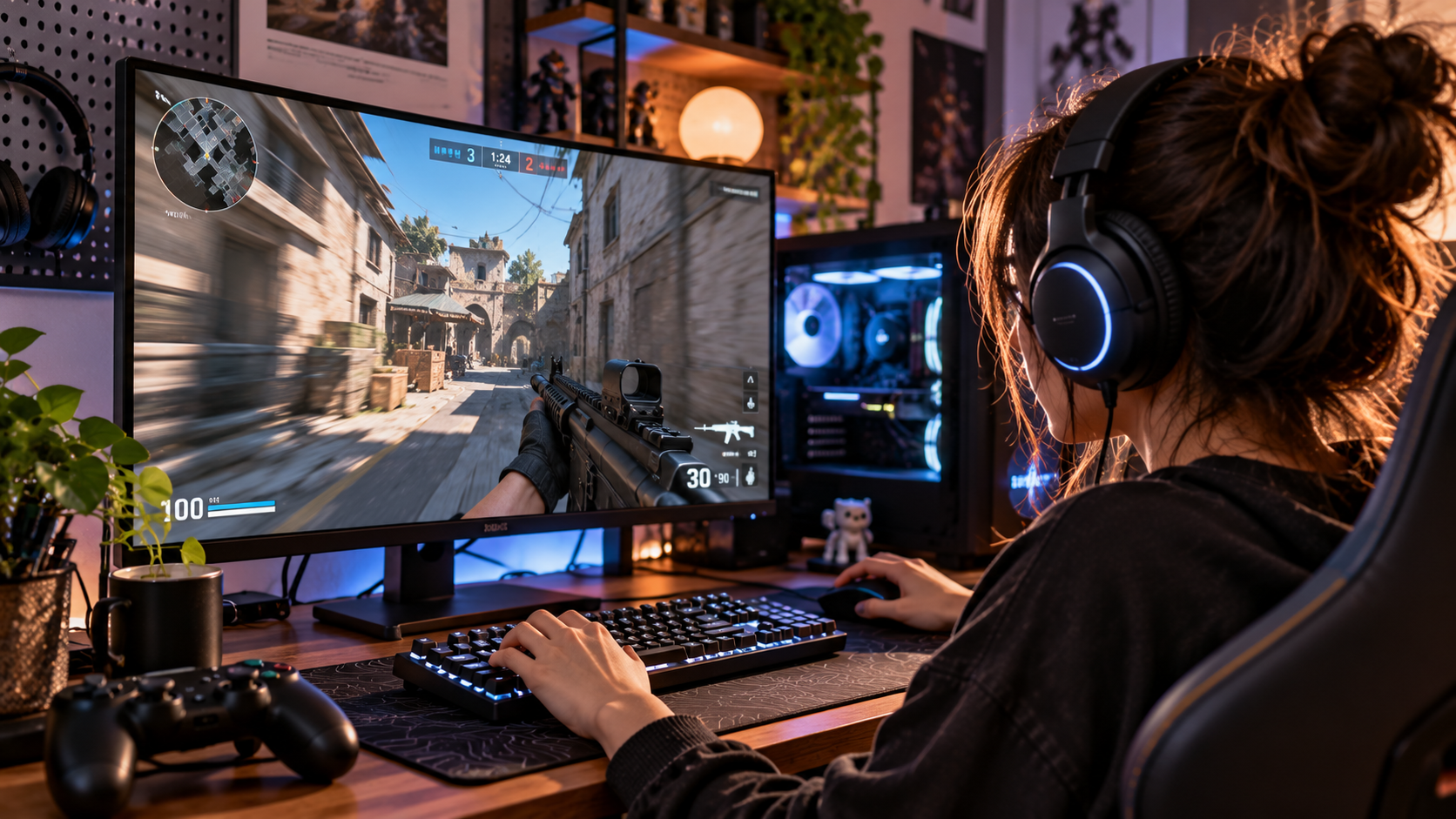
You move the mouse.
The camera follows—but something feels slightly late.
You press a button on the controller.
The character responds, yet the movement does not feel immediate.
Your frame rate is high.
The internet connection looks stable.
Ping is low.
Nothing appears obviously broken.
Still, the game feels heavy.
Sluggish.
Disconnected from your hands.
This is one of the most frustrating gaming problems because the numbers players usually check may look completely normal.
High FPS does not automatically mean instant controls.
Low network ping does not guarantee low local latency either.
The delay between your physical input and the action appearing on the screen involves several stages, and a problem at almost any of them can contribute to input lag in games.
Understanding that chain makes troubleshooting much easier than randomly lowering graphics settings or blaming the internet.
Input Lag Is the Delay Between Your Action and What You See
At a basic level, input lag describes the time between performing an action and seeing its result represented on the display.
Move the mouse.
Press a keyboard key.
Pull a controller trigger.
Tap a touchscreen.
The input needs to travel through the system before the final frame reaches your eyes.
That process is extremely fast when everything is working well.
But gamers are surprisingly sensitive to changes in responsiveness, especially in games requiring precise timing.
The Entire Input Pipeline Matters
Think of gaming responsiveness as a chain.
Your input device detects an action.
The operating system and game receive it.
The CPU processes the game state.
The GPU renders the next frame.
The completed image moves through the display pipeline.
The monitor refreshes.
Your eyes finally see the result.
Latency can accumulate across this entire sequence.
That is why focusing on only one number can be misleading.
Ping and Input Lag Are Not the Same Thing
This distinction causes a lot of confusion.
Ping generally describes network round-trip latency between your device and a remote server.
Input lag concerns how quickly your local action becomes a visible response.
They can interact in online games, but they are not interchangeable.
You can have excellent internet latency and still experience poor local responsiveness.
You can also have a highly responsive local system while suffering network problems.
Ask Whether the Delay Exists Offline
A useful first test is simple.
Does the game feel delayed only during online matches?
Or does the same sluggish feeling exist in:
training modes,
offline matches,
menus,
single-player content,
or local practice areas?
If the controls feel heavy even when networking is irrelevant, your internet connection becomes a less likely explanation.
That immediately narrows the investigation.
Network Lag Often Looks Different
Network problems can produce:
rubber-banding,
players teleporting,
delayed server confirmation,
shots behaving unexpectedly,
position corrections,
or inconsistent interactions with other players.
Local input latency feels different.
The camera itself may feel heavy.
Aiming feels detached.
Button presses seem visually late.
Even menu navigation may feel less responsive.
Learning to distinguish these sensations saves a lot of unnecessary router troubleshooting.
High FPS Helps, but It Does Not Tell the Whole Story
Frame rate matters because higher FPS generally means frames are produced more frequently.
At 30 FPS, a new frame is generated roughly every 33.3 milliseconds.
At 60 FPS, approximately every 16.7 milliseconds.
At 120 FPS, around every 8.3 milliseconds.
At 240 FPS, approximately every 4.2 milliseconds.
Higher frame rates can therefore reduce the amount of time the system waits for the next frame.
But average FPS alone does not describe the entire latency pipeline.
Stable Frame Delivery Matters Too
Imagine two systems both reporting 120 FPS.
System A produces frames at relatively consistent intervals.
System B constantly jumps between very fast and slower frame times.
The average may look similar.
The experience may not.
Inconsistent frame delivery can make controls feel less predictable because visual feedback does not arrive at a consistent rhythm.
This is why frame-time behavior deserves attention alongside FPS.
Average FPS Can Hide Short Spikes
An FPS counter may display 144.
Then 141.
Then 146.
Everything appears healthy.
But very short frame-time spikes may still occur between those readings.
If the counter averages measurements over time, those spikes can be difficult to notice numerically.
Your hands may notice them first.
The game briefly feels heavier even though the displayed FPS barely changes.
Refresh Rate Determines How Often the Display Can Update
Your monitor’s refresh rate is another part of responsiveness.
A 60 Hz display refreshes up to 60 times per second.
A 120 Hz display refreshes more frequently.
144 Hz, 165 Hz, 240 Hz, and higher refresh rates reduce the time between display refresh opportunities.
Higher refresh rate can make motion and control feedback feel more immediate.
But only if the system is actually configured to use it.
A High-Refresh Monitor Can Accidentally Run at 60 Hz
This happens more often than people expect.
Someone buys a 144 Hz or 240 Hz monitor.
They connect it.
The image works.
They assume the higher refresh rate is automatically active.
But the operating system may still be configured for 60 Hz.
The game may then feel significantly less responsive than expected despite high FPS.
Always verify the actual active refresh rate rather than assuming the monitor’s advertised maximum is being used.
In-Game Refresh Settings Can Matter Too
Some games allow you to choose:
resolution,
refresh rate,
window mode,
and display device.
Check these settings after:
driver updates,
game updates,
monitor changes,
cable changes,
or switching between fullscreen and windowed modes.
A configuration that worked previously can occasionally change.
Fullscreen, Borderless, and Windowed Modes Can Behave Differently
Display mode can affect the rendering and presentation path depending on the game, operating system, and configuration.
Traditional exclusive fullscreen historically gave games more direct control over presentation.
Modern operating systems have improved borderless and windowed gaming significantly.
As a result, there is no universal rule saying one mode always provides dramatically lower latency in every modern game.
The practical approach is to test.
If one mode feels noticeably more responsive on your setup, use the behavior of your actual system rather than relying on old assumptions.
V-Sync Can Improve One Problem While Creating Another
Screen tearing occurs when the display shows portions of different frames during the same refresh.
V-Sync can prevent or reduce this by coordinating frame presentation with the display refresh.
The visual result can be cleaner.
But traditional V-Sync configurations can also introduce additional latency because frames may wait before being displayed.
This is why competitive players often pay close attention to synchronization settings.
Do Not Disable V-Sync Blindly
Turning V-Sync off may reduce latency in some configurations.
It may also introduce obvious tearing.
The best setting depends on:
your display,
frame rate,
game,
adaptive-sync support,
and personal sensitivity.
Instead of copying a universal recommendation, understand the tradeoff.
You are balancing responsiveness, tearing, smoothness, and consistency.
Adaptive Sync Changes the Equation
Variable refresh technologies allow compatible displays to adjust their refresh behavior around the frame output of the system.
This can reduce tearing without relying entirely on traditional fixed-refresh synchronization behavior.
Depending on your GPU, monitor, and platform, you may encounter technologies such as variable refresh rate, Adaptive-Sync, FreeSync, or G-SYNC.
The exact optimal configuration depends on the hardware and game.
What matters is recognizing that synchronization is part of the latency chain.
Frame Caps Can Sometimes Improve Consistency
Unlimited FPS sounds ideal.
Sometimes it is.
But allowing the GPU to run permanently at maximum load can create situations where the rendering queue becomes less responsive.
A sensible frame cap can sometimes improve consistency and keep the system away from constant saturation.
The best cap depends on your hardware, refresh rate, synchronization setup, and game.
Do not assume “unlimited” automatically means “lowest possible latency.”
GPU Usage Can Affect Responsiveness
Suppose your GPU is operating at or near full utilization continuously.
Every available resource is being used to render frames.
That may maximize visual throughput.
But depending on the rendering pipeline, it can also increase the amount of work waiting to be processed.
Reducing a few demanding settings or using an appropriate frame limit can sometimes make controls feel more immediate even if the FPS counter was already high.
Graphics Settings Do Not Affect Latency Equally
Players often set everything to Low when troubleshooting.
That can work, but it tells you very little.
Different settings stress different parts of the system.
Resolution and certain visual effects may heavily affect GPU load.
Crowd simulation, physics, view distance, or world complexity may increase CPU work depending on the game.
Instead of changing twenty options simultaneously, identify the bottleneck.
CPU Limitations Can Also Create Input Problems
High FPS does not guarantee that every part of the game simulation is running without delay.
Some games rely heavily on CPU performance for:
player input,
physics,
AI,
world simulation,
draw-call preparation,
and other tasks.
If one or more critical CPU threads become overloaded, responsiveness can suffer.
This may be especially noticeable in crowded areas or complex scenes.
Watch What Happens in Different Parts of the Game
Does input lag become worse when:
many players appear,
large battles begin,
you enter a dense city,
physics objects increase,
or the environment becomes more complicated?
If responsiveness changes dramatically according to scene complexity, system load deserves investigation.
A peripheral problem would usually not care whether you are standing in an empty room or fighting 50 enemies.
Background Applications Can Compete for Resources
Your game is rarely the only software running.
Browsers.
Streaming applications.
Recording software.
RGB utilities.
Hardware monitoring tools.
Launchers.
Voice chat.
Cloud synchronization.
Antivirus activity.
Background updates.
One application may not cause a problem.
Several together can change system behavior.
Overlays Are Worth Testing
Many applications can place overlays on top of games.
FPS counters.
Chat overlays.
Recording controls.
GPU monitoring.
Platform notifications.
These features are often perfectly fine.
But when troubleshooting unexplained latency or stutter, temporarily disabling unnecessary overlays is a useful diagnostic step.
If nothing changes, turn them back on.
Troubleshooting should be reversible.
Recording and Streaming Add Work
Capturing gameplay requires system resources.
Modern hardware encoders make this much more efficient than it once was, but recording is still additional work.
If a game feels responsive normally and heavier only while recording or streaming, compare:
encoder settings,
capture resolution,
frame rate,
GPU load,
CPU load,
and available memory.
The timing of the problem provides useful evidence.
Low-Latency Features Can Help
Modern games and GPU platforms may include latency-reduction options.
Their names and behavior vary.
Some reduce render queues.
Others coordinate CPU and GPU work more aggressively.
Competitive games increasingly expose these settings because responsiveness matters.
If your game provides a dedicated low-latency feature, understand what it does before combining it with several driver-level tweaks.
More Tweaks Are Not Always Better
Gaming optimization communities often produce enormous lists.
Disable this.
Change that registry setting.
Install this utility.
Modify a timer.
Change a driver option.
Turn off ten Windows services.
The problem is that once twenty variables change, you no longer know what actually helped.
Worse, some tweaks may be outdated, irrelevant, or harmful.
Start with measurable, reversible changes.
The Mouse Is Part of the Latency Chain
A gaming mouse reports movement to the computer at a certain rate.
Polling rate describes how frequently those reports can occur.
Higher polling rates can reduce the interval between updates.
Common gaming configurations include 500 Hz and 1000 Hz, while some modern mice support significantly higher rates.
But higher is not automatically necessary for every setup.
Extremely High Polling Rates Can Increase CPU Work
A mouse reporting thousands of times per second generates more input events.
Modern systems can often handle this.
But some games or CPUs may behave differently at very high polling rates.
If you recently changed from 1000 Hz to 4000 Hz or 8000 Hz and suddenly notice unusual performance behavior, test a lower rate.
The newest maximum setting is not always the best setting for every game.
Wireless Gaming Mice Are Not Automatically Slow
Old assumptions about wireless peripherals are increasingly outdated.
Modern gaming-focused wireless mice can offer very low latency.
The relevant question is not simply:
“Wireless or wired?”
It is:
“What device and connection technology am I using?”
Bluetooth, proprietary low-latency wireless, and wired USB are not identical.
Bluetooth Can Behave Differently
A controller or mouse connected through Bluetooth may have different latency characteristics from a dedicated wireless receiver or wired connection.
The exact difference varies by device and implementation.
If you suspect controller latency, compare connection methods.
Testing is much more useful than assuming all wireless connections behave the same.
Keep Wireless Receivers in a Sensible Position
A tiny receiver connected behind a desktop tower beneath a metal desk may not have the same wireless conditions as one positioned closer to the mouse.
Interference and distance can affect connection quality.
Some gaming mice include receiver extension adapters for this reason.
If input occasionally skips rather than simply feeling consistently delayed, connection quality deserves attention.
Battery Level Can Be Worth Checking
Modern peripherals usually handle low battery states gracefully.
Still, if a wireless device begins behaving strangely, checking its charge is an easy step.
Troubleshooting should begin with simple possibilities before moving into complicated system changes.
Keyboard Behavior Matters Too
Mechanical keyboards, optical keyboards, membrane keyboards, and gaming keyboards can have different characteristics.
Some gaming models allow adjustable actuation points or rapid-trigger behavior.
These features can influence how quickly a key registers.
But the effect must be understood in context.
A slightly faster keyboard will not solve 40 milliseconds of latency elsewhere in the system.
Rapid Trigger Changes How Keys Reset
On compatible keyboards, rapid-trigger functionality can allow a key to reset based on movement rather than requiring it to return to a fixed reset point.
This can be useful in games where rapid directional changes matter.
But it can also make keys feel overly sensitive if configured aggressively.
Settings should match the game and the player.
Controller Deadzones Can Feel Like Input Lag
This is an important distinction.
Suppose you move the analog stick slightly.
Nothing happens.
Move farther.
Now the camera begins turning.
That may not be latency at all.
It could be the deadzone.
A deadzone intentionally ignores small stick movements, often to prevent drift.
If it is too large, controls can feel unresponsive.
Lower Deadzone Carefully
Setting the deadzone extremely low can make the controller respond sooner.
But if the stick has even minor drift, unwanted movement may appear.
Find the lowest stable value rather than automatically selecting zero.
The ideal setting varies from controller to controller because hardware wear differs.
Aim Acceleration Can Also Feel Like Delay
Some games change camera speed depending on how long or how far a stick is moved.
This is often called acceleration or represented through different response curves.
The input may technically register immediately.
But the camera does not initially move at the speed you expect.
Subjectively, that can feel like input lag.
Check controller response settings before blaming hardware.
Response Curves Change the Relationship Between Input and Movement
Linear.
Dynamic.
Exponential.
Classic.
Standard.
Games use different names.
These curves determine how stick position translates into camera movement.
A curve that feels excellent to one player may feel heavy to another.
If a game feels delayed only when aiming with a controller, response-curve settings deserve attention.
Mouse Smoothing Can Create a Similar Sensation
Mouse smoothing modifies raw movement to create a more averaged or controlled motion.
For some experiences, that may feel comfortable.
For precise competitive aiming, many players prefer direct input.
If the camera seems to float slightly after your physical movement, check whether the game uses smoothing or acceleration.
Raw Mouse Input Can Reduce Interference From Other Settings
Some PC games provide a raw input option.
When properly implemented, it allows the game to use mouse data more directly rather than relying on additional operating-system pointer processing.
This can make aiming behavior more predictable.
Again, terminology and implementation vary by game.
Your Desktop Mouse Settings Are Not Always Your Game Settings
Some games use raw input.
Others interact more with operating-system settings.
This is why changing Windows pointer speed may dramatically affect one game and barely affect another.
When troubleshooting, understand where sensitivity is being applied.
Ideally, avoid stacking multiple unknown acceleration or smoothing layers.
Display Processing Can Add Significant Delay
Your computer may produce frames quickly.
The monitor or television still needs to display them.
Displays can perform processing for:
motion enhancement,
noise reduction,
image sharpening,
scaling,
dynamic contrast,
and other features.
That processing can take time.
Gaming displays often provide modes designed to reduce unnecessary processing.
TVs Deserve Particular Attention
Modern televisions can provide excellent gaming experiences.
But many include extensive image processing by default.
If a console feels strangely delayed on a TV, check whether the correct HDMI input is using Game Mode or an equivalent low-latency mode.
This can make a major difference on some displays.
Motion Smoothing Is Usually Not What You Want for Responsive Gaming
Television motion interpolation creates additional frames to make video appear smoother.
That can be useful for certain viewing preferences.
Gaming is different.
Creating interpolated frames requires processing and can increase delay.
For interactive content, low-latency display modes generally prioritize responsiveness instead.
Monitor Overdrive Is Different From Input Lag
Overdrive controls how aggressively monitor pixels transition between colors.
Poor response times can create ghosting or smearing.
Excessive overdrive can create inverse ghosting.
These are motion-clarity issues.
They are related to the overall gaming experience but should not be confused directly with input latency.
A display can have low input lag and still show poor pixel response behavior.
Pixel Response Time and Refresh Rate Are Different Measurements
A 240 Hz monitor does not automatically guarantee perfect pixel transitions.
Refresh rate tells you how frequently the display can update.
Pixel response describes how quickly pixels change state.
Marketing specifications can make these concepts seem interchangeable.
They are not.
Understanding the distinction helps diagnose whether a game feels delayed or simply looks blurry during movement.
Resolution Scaling Can Affect Performance
Rendering at higher internal resolution increases GPU workload.
If your GPU is already saturated, reducing resolution or render scale may improve responsiveness.
Upscaling technologies can also change the performance equation.
The right setting depends on whether you are limited by GPU performance and what image quality you consider acceptable.
Ray Tracing Can Be Expensive
Ray-traced effects can significantly increase rendering cost in supported games.
For cinematic single-player games, you may decide the visual improvement is worth it.
For competitive games where responsiveness is the priority, reducing expensive effects may make more sense.
There is no universal “correct” balance.
The correct balance depends on what you value in that game.
Frame Generation Requires Understanding
Modern frame-generation technologies can increase the displayed frame rate by generating intermediate frames.
The result can make motion appear smoother.
But generated frames do not mean the game simulation is processing your inputs at the same rate as a system natively rendering every frame.
This is why a very high displayed FPS produced with frame generation may not feel identical to the same FPS rendered natively.
Base Frame Rate Still Matters With Frame Generation
Suppose one system generates frames from a strong native frame rate.
Another starts from a much lower native rate.
Both may display impressive final FPS numbers.
Their responsiveness can still differ.
Frame generation is valuable technology, especially for visually demanding games, but the FPS counter needs context.
Do not interpret generated FPS exactly like native FPS when diagnosing input feel.
Laptop Power Modes Can Change Responsiveness
Gaming laptops operate under power and thermal constraints.
A system on battery may reduce CPU or GPU performance.
Quiet modes can intentionally limit power.
Balanced modes may behave differently from performance modes.
If a game suddenly feels sluggish on a laptop, check:
whether the charger is connected,
the active performance profile,
temperatures,
and actual clock behavior.
Thermal Throttling Can Appear After Playing for a While
Suppose the game feels excellent for the first twenty minutes.
Then responsiveness gradually worsens.
FPS may decrease slightly or frame times become less stable.
Heat could be involved.
As components reach thermal limits, clocks may change.
Monitor temperatures and performance behavior over time rather than checking only immediately after launching the game.
Power Saving Can Affect Desktop Systems Too
Operating-system power settings, GPU driver behavior, and background energy-saving features can influence performance.
You generally do not need to disable every efficiency feature.
But if the system is behaving unexpectedly, verify that it is not using an inappropriate power mode for gaming.
Use normal supported settings before experimenting with obscure tweaks.
Drivers Can Introduce or Solve Problems
If input suddenly feels different after a GPU driver update, game update, or peripheral software update, the timing matters.
A newer driver is not automatically the cause.
But recent changes provide a useful starting point.
Check whether settings were reset.
Verify display refresh rate.
Inspect synchronization settings.
Confirm game profiles.
A configuration change may be responsible even when the software itself works correctly.
Peripheral Software Can Change Profiles Automatically
Gaming mice and keyboards often support per-game profiles.
Launching one title might automatically change:
DPI,
polling rate,
button assignments,
lighting,
or sensitivity-related settings.
If only one game feels strange, verify whether a software profile is activating.
Sometimes the “input lag” is actually an unexpected sensitivity or polling configuration.
Controller Software Can Do the Same
Some controller applications allow:
deadzone changes,
response curves,
trigger behavior,
button remapping,
and profiles.
Then the game itself adds another layer of settings.
If both layers modify the input simultaneously, behavior can become confusing.
Simplify the chain while troubleshooting.
USB Ports Are Easy to Test
If a wired peripheral behaves strangely, try another appropriate USB port.
Avoid immediately buying new hardware.
Also test without unnecessary hubs if practical.
A hub is not inherently bad, but removing intermediate components helps isolate problems.
Troubleshooting is about simplifying the system until the cause becomes visible.
Do Not Ignore the Cable
A damaged cable may cause intermittent disconnects or unstable behavior.
That usually feels different from consistent input latency, but players sometimes describe both as “lag.”
If the mouse freezes briefly or controller disconnects for fractions of a second, inspect the physical connection.
Consistent delay and intermittent failure are different clues.
Audio Can Influence Perceived Responsiveness
This sounds strange, but perception is multisensory.
If an action’s sound effect arrives noticeably after the visual response—or vice versa—the entire interaction can feel delayed.
Bluetooth audio can introduce noticeable audio latency depending on the device and codec.
That does not necessarily mean your controls are delayed.
It may be the sound.
Test using wired audio or another output if the timing feels unusual.
Cloud Gaming Is a Different Situation
With local gaming, your machine renders the game.
With cloud gaming, your input must travel to a remote system.
The game is processed there.
Video is encoded.
Sent back through the network.
Decoded.
Then displayed.
Network conditions therefore become an inherent part of the input-to-display pipeline.
A cloud game can feel delayed even if your local hardware is extremely powerful.
Wi-Fi Quality Matters More for Cloud Gaming
Average internet speed alone does not tell the entire story.
Latency.
Jitter.
Packet loss.
Network congestion.
Wireless interference.
These can influence cloud-gaming responsiveness.
A speed test showing hundreds of megabits per second does not automatically prove the connection is ideal for interactive streaming.
Consistency matters.
Mobile Gaming Has Its Own Input Pipeline
On smartphones and tablets, touchscreen sampling, display refresh rate, game frame rate, thermal behavior, and power management all affect responsiveness.
A phone advertising a high refresh rate may not run every game at that refresh rate.
The game itself must support appropriate frame rates.
The device also needs enough sustained performance to maintain them.
Touch Sampling Rate Is Not the Same as Display Refresh Rate
These specifications are sometimes marketed together.
Display refresh rate describes how frequently the screen updates.
Touch sampling describes how frequently touch input can be detected.
A device may have a high touch sampling rate while the game itself renders at a much lower FPS.
Again, the entire chain determines the final experience.
Console Games Can Have Different Latency Modes
Some console titles offer:
Quality Mode,
Performance Mode,
Balanced Mode,
or similar options.
Quality modes may prioritize resolution, ray tracing, or visual effects.
Performance modes usually target higher frame rates.
The higher-frame-rate option often feels more responsive because frames are produced more frequently.
For action-heavy games, the difference can be immediately noticeable.
A 30 FPS Game and a 60 FPS Game Can Feel Very Different
Even if both are stable, their input-to-display behavior is not identical.
At 30 FPS, frames are spaced much farther apart.
At 60 FPS, visual feedback can update more frequently.
Moving from 60 to 120 FPS can further improve responsiveness when the game and display support it.
This is one reason performance modes are popular even when quality modes look sharper.
Some Games Simply Have More Built-In Latency
Not every game is designed around instant response.
Animation systems can deliberately create weight.
Characters may need to finish movement phases.
Attacks may have wind-up animations.
Camera smoothing may be intentional.
Vehicles may simulate steering response.
A game feeling “heavy” does not automatically mean something is technically wrong.
Animation Delay Is Not Necessarily Input Lag
Press attack.
The game immediately registers the input.
But the character performs a 300-millisecond wind-up animation before the hit occurs.
That is game design.
The input was processed.
The action itself takes time.
Distinguishing intentional animation from technical latency prevents endless troubleshooting of something that cannot be “fixed.”
Compare With Known Gameplay Behavior
If possible, compare the same game on another system or watch input demonstrations from reliable technical testing.
Does the game normally have weighty movement?
Is aiming intentionally smoothed?
Does the character have momentum?
Understanding intended behavior provides a baseline.
Without one, players may try to optimize away a design choice.
Human Adaptation Is Real
Players adapt to latency.
Spend hours playing one setup and your timing adjusts.
Then switch to a faster monitor or different controller.
The new system can initially feel strange.
Return to the old setup afterward and suddenly it feels extremely delayed.
Perception is relative.
This is why controlled comparisons are useful.
Sensitivity Changes Can Be Mistaken for Latency
Lower mouse sensitivity makes the camera move less for the same physical motion.
That can feel heavier.
Higher sensitivity can feel more immediate even when actual latency has not changed.
Similarly, changing field of view can alter perceived motion speed.
Before diagnosing hardware, verify that basic game settings have not changed.
Field of View Changes Perception
A wider field of view can make movement appear faster at the edges of the screen.
A narrower field can feel slower.
The input latency may be identical.
Visual perception changes.
This is another reason “the game feels slower” is not always enough information.
Try to identify exactly what feels different.
Build a Repeatable Test
Instead of changing settings based purely on vague impressions, create a simple test.
Use the same game.
Same map or training area.
Same camera movement.
Same weapon or character.
Same display.
Then change one variable.
V-Sync on versus off.
120 Hz versus 60 Hz.
One controller connection versus another.
Frame cap versus unlimited.
A repeatable scenario makes differences easier to notice.
Change One Thing at a Time
This is perhaps the most important troubleshooting rule.
If you simultaneously:
disable V-Sync,
change drivers,
switch USB ports,
lower graphics,
change polling rate,
enable a low-latency mode,
and change display settings,
then the game suddenly feels better.
What fixed it?
You do not know.
And if the problem returns, you learned almost nothing.
Start With the Obvious Configuration
Before advanced troubleshooting, verify:
the monitor is running at the intended refresh rate,
the game is using the correct display,
FPS is behaving normally,
the system is not overheating,
controller deadzones are reasonable,
V-Sync and adaptive-sync settings are intentional,
and no recent profile change occurred.
These checks solve more problems than exotic optimization guides.
Then Identify Whether the Problem Is Constant
Constant input delay suggests one category of causes.
Intermittent delay suggests another.
If controls always feel heavy, investigate:
display processing,
synchronization,
frame pipeline,
game settings,
or built-in game behavior.
If delay appears only occasionally, investigate:
frame-time spikes,
background activity,
thermal changes,
wireless instability,
or system load.
Patterns are information.
Ask When the Problem Started
Was it always like this?
Did it begin after:
buying a new monitor,
changing GPU,
updating a driver,
installing new peripheral software,
moving from wired to wireless,
changing graphics settings,
or enabling frame generation?
A timeline can be more valuable than another benchmark.
Problems often follow changes.
Test Another Game
If every game suddenly feels delayed, look toward system-wide factors.
Display settings.
Peripheral configuration.
Driver behavior.
Operating-system changes.
If only one game feels delayed, focus more heavily on that game’s settings, engine behavior, and updates.
This simple comparison can eliminate many possibilities.
Test Another Input Device
If possible, compare:
another mouse,
another controller,
wired versus wireless,
or a different USB connection.
You do not need to permanently replace anything.
The goal is diagnosis.
If the delay remains identical across multiple devices, the original peripheral becomes less likely to be the cause.
Test the Display Separately
If your PC is connected to both a monitor and television, compare them.
If one feels responsive and the other feels delayed, investigate display-side settings.
Check Game Mode.
Refresh rate.
Resolution.
Processing features.
HDMI configuration.
The difference itself tells you where to look.
Do Not Buy New Hardware Before Isolating the Problem
Input lag creates a strong temptation to upgrade.
New mouse.
New controller.
New monitor.
New GPU.
Sometimes hardware really is the limitation.
But replacing components before identifying the bottleneck can be expensive and ineffective.
A $150 mouse cannot fix a television running heavy image processing.
A new GPU cannot fix an oversized controller deadzone.
Competitive Gaming Changes Priorities
In a story-driven game, you may prefer:
higher visual quality,
ray tracing,
maximum resolution,
and smoother presentation.
In a competitive shooter or fighting game, you may prioritize:
higher native FPS,
lower latency,
clear motion,
and consistent frame times.
The same computer can therefore use different configurations for different games.
Optimization should follow the purpose.
Fighting Games Make Latency Especially Obvious
Fighting games depend heavily on timing.
Inputs may need to occur within narrow windows.
Additional delay can affect reactions and combos.
This is why fighting-game communities care deeply about display lag, controller behavior, and online netcode.
A few milliseconds matter more when the game itself is built around precise timing.
Rhythm Games Are Another Extreme Example
Rhythm games expose timing problems very clearly.
Audio, visual cues, and input must align.
Many rhythm games include calibration settings because displays and audio systems can introduce different delays.
If a rhythm game consistently judges your timing early or late, calibration may be more appropriate than changing the entire PC configuration.
Shooters Emphasize Aim Response
Competitive shooters demand rapid visual feedback from mouse movement.
Even small differences in frame rate, render queue, mouse settings, or display behavior can alter the subjective feel of aiming.
That is why players often notice latency differences in shooters before noticing them in slower genres.
Racing Games Depend on Predictability
A racing game may not require flick aiming, but steering needs predictable feedback.
If the display or controller introduces delay, correcting a slide becomes harder.
By the time you see the car moving, your next correction may already be late.
Responsiveness matters wherever players continuously adjust actions based on visual feedback.
Input Lag Is Ultimately About Feedback
Gaming is a loop.
You act.
The game responds.
You see the response.
You adjust.
Then repeat.
The faster and more consistent that loop feels, the stronger the connection between player and game.
Latency weakens that connection.
Even when a game looks smooth, delayed feedback can make control feel wrong.
Smoothness and Responsiveness Are Related but Not Identical
This is one of the most useful ideas to remember.
A game can look smooth but feel delayed.
Frame generation is a good example of why displayed smoothness and native responsiveness should not be treated as identical measurements.
A game can also look somewhat uneven while controls still feel relatively direct.
The best experience usually combines both:
consistent motion and responsive input.
Stop Chasing the Lowest Number Without Context
Technical communities sometimes reduce gaming performance to one metric.
FPS.
Ping.
System latency.
Mouse polling.
Monitor response time.
Each number can be useful.
None tells the complete story alone.
A gaming setup is a pipeline.
Optimizing one component while ignoring everything else can produce disappointing results.
The Best Setting Is the One That Solves Your Actual Problem
Do you have tearing?
Synchronization matters.
Does the game become sluggish only when GPU usage reaches maximum?
Rendering load matters.
Does the controller ignore small stick movements?
Deadzones matter.
Does the television feel delayed while the monitor feels fine?
Display processing matters.
Does everything worsen after an hour?
Thermals deserve attention.
Good troubleshooting follows evidence.
A Practical Troubleshooting Order
When input lag in games appears unexpectedly, start with the simplest checks.
Confirm the monitor’s active refresh rate.
Check whether the problem occurs offline.
Compare another game.
Verify FPS and frame-time behavior.
Check V-Sync and variable-refresh settings.
Inspect controller deadzones or mouse configuration.
Close unnecessary background software temporarily.
Check CPU and GPU load.
Check temperatures.
Compare another input device or connection method.
Test display Game Mode when using a television.
Only after those steps should you move toward more unusual system changes.
Keep Notes When Troubleshooting
If the problem is persistent, write down what you test.
For example:
V-Sync off — slightly more responsive, tearing visible.
120 FPS cap — stable.
Unlimited — GPU constantly at maximum.
Bluetooth controller — noticeable difference.
Wired controller — feels normal.
This prevents you from repeatedly testing the same settings and helps reveal patterns.
Revert Changes That Do Nothing
Optimization guides often leave users with dozens of modified settings.
If a change does not improve the problem, consider returning it to the original value.
A clean configuration is easier to understand.
The fewer unexplained modifications in the system, the easier future troubleshooting becomes.
Conclusion
A game can run at high FPS, show low network ping, and still feel strangely delayed because input lag in games is not controlled by one number.
Your action travels through an entire chain.
The mouse, keyboard, controller, or touchscreen detects input.
The game processes it.
The CPU updates the game state.
The GPU renders a frame.
Synchronization determines how that frame is presented.
The monitor or television processes and displays it.
Every stage can influence the final feeling of responsiveness.
That is why the correct solution depends on where the delay actually occurs.
If the problem appears only online, investigate network behavior.
If menus and offline gameplay feel heavy too, look at the local system.
Verify refresh rate.
Check frame-time consistency.
Understand V-Sync and adaptive sync.
Inspect GPU saturation.
Test controller deadzones and response curves.
Compare peripheral connection methods.
Make sure a television is using its low-latency gaming mode.
Most importantly, change one variable at a time.
Do not replace hardware or apply twenty optimization tweaks simply because the game “feels slow.”
Find the part of the input-to-display chain that is actually causing the delay.
Once you do, the FPS counter becomes what it should have been all along:
one useful measurement among many, rather than the entire explanation for how responsive a game feels.