
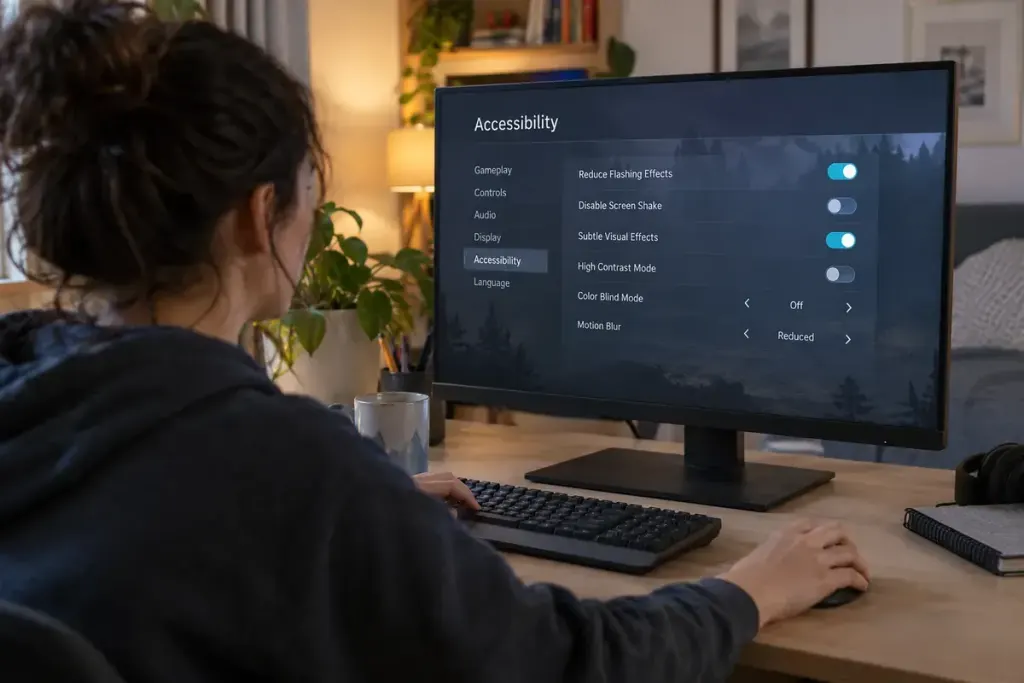
A game’s most useful visual option may be hidden below the usual resolution and frame-rate controls. Before starting a new title, look for settings that reduce flashing, strobing, lightning effects or intense screen transitions.
The wording varies. A general “reduced effects” preset might change particles without changing flashes, while a dedicated toggle may affect only certain scenes. Read the description and the publisher’s accessibility information rather than assuming that one label covers everything.
Check before the opening sequence
Open accessibility and display menus from the title screen where possible. Adjust relevant options before loading a save or starting a cinematic. If settings are only available during play, consult the game’s official support information first rather than deliberately exposing yourself to an effect to test it.
Also distinguish motion blur, camera shake and brightness from flash reduction. These can change comfort in different ways, but one does not automatically replace another. Some settings may be saved per device or profile, so check again after switching platforms or resetting preferences.
Understand what the option cannot promise
Xbox’s photosensitivity guidance discusses reducing or eliminating triggering content and the limitations of relying on warnings. A warning or toggle does not prove that every sequence, user-created effect or later update is suitable for a particular player.
If flashing content is a known concern for you, use appropriate professional medical advice when deciding whether to play. Stop if the experience causes symptoms; do not keep testing your tolerance to complete a settings comparison.
For a useful bug report, describe the game version, platform, selected settings and the scene where the option appeared ineffective. You do not need to reproduce the effect repeatedly or send a flashing clip publicly. Clear written details can help developers investigate while keeping the report accessible to other readers.