
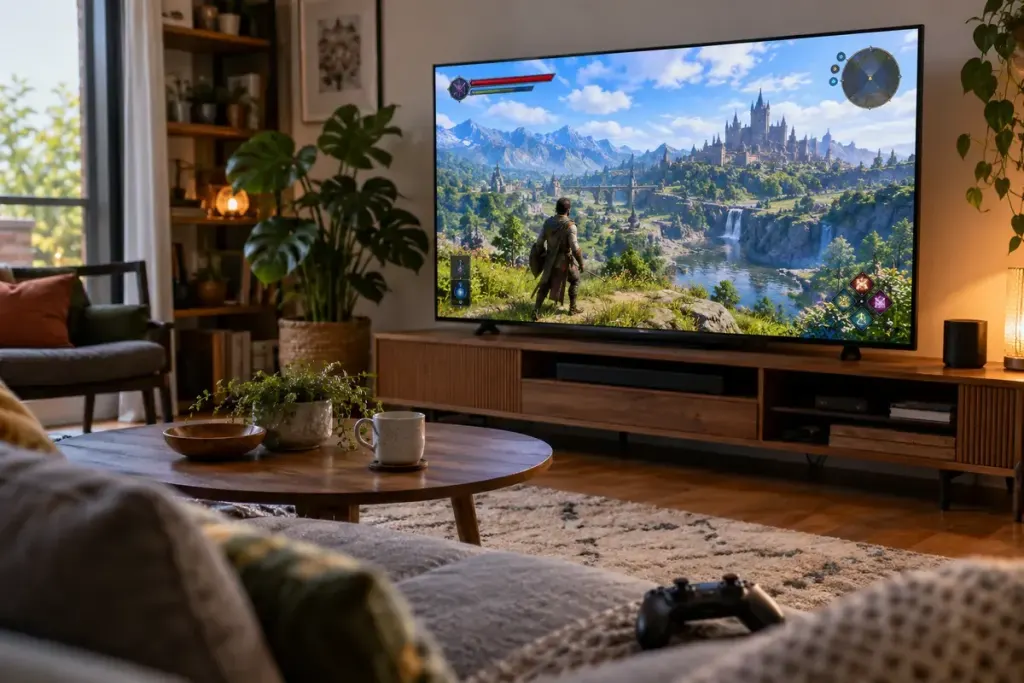
The game runs smoothly, but the last digit of the ammunition counter disappears beyond the edge of the television. That is a different problem from small text or a low frame rate. Start by checking how much of the picture the display is showing.
Find out where the cropping begins
Open the console’s home screen or another familiar application. If several screens lose their outer edges, investigate the television’s picture-size settings and the console’s display-area adjustment. Manufacturers use different names for scaling and overscan, so consult the manual for your model.
For PS5, Sony’s video-output guide includes an Adjust Display Area option under the screen settings. Follow the on-screen markers rather than guessing from a single game. The route and available options can differ on other platforms.
Then check the game’s own boundary
Some games provide a safe-area or HUD boundary control. Adjust it while viewing the calibration markers, then return to gameplay and menus. A title may position subtitles, notifications and the main HUD differently, so test more than the health bar.
Change one setting at a time and note its original value. Otherwise, a television adjustment and a game adjustment can compensate for one another in a confusing way. If only one game is affected, check that game’s official support guidance before resetting the whole console.
Do not solve cropping by accepting unreadably small text. Once the complete image fits, use separate interface or accessibility controls for text size where available. Also check any split-screen mode you actually use; its layout may differ from the single-player view.
A useful final test is to open the map, inventory, pause menu and a dialogue scene. When every important edge remains visible, save the settings and stop adjusting unrelated options.