
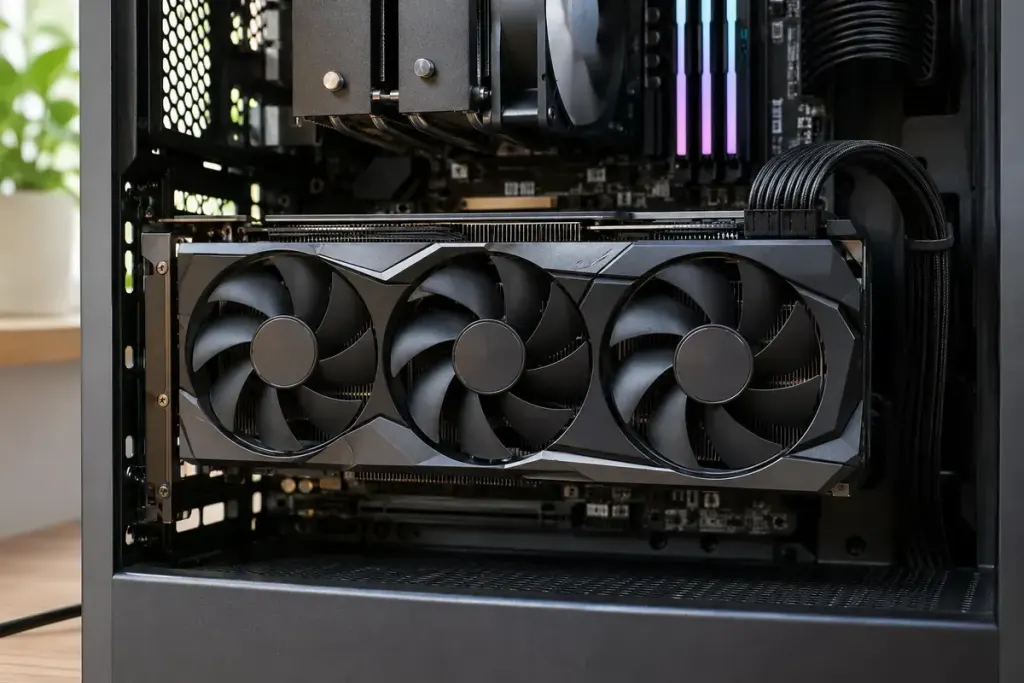
A graphics-card guide tells you to enable Resizable BAR, but the name gives little clue about its purpose. It concerns how a processor can access a PCIe device’s memory resources. It does not install more VRAM or make an unsupported graphics card compatible with every game.
Intel’s explanation describes Resizable BAR as a PCIe capability that lets a device negotiate the size of its Base Address Register mapping. A supported configuration can improve performance, but the result depends on the hardware, firmware, driver and workload.
Check the whole platform
Start with the system or motherboard manufacturer’s support information and the graphics-card vendor’s requirements. A BIOS option alone does not prove that the operating configuration is ready. The feature can appear under names including Re-Size BAR or a vendor-specific label.
Intel’s instructions include UEFI requirements and related firmware settings. Do not blindly change a working computer from legacy boot mode: first confirm how its operating system was installed and what the manufacturer recommends. A performance tweak is not worth leaving the machine unable to boot.
Verify before benchmarking
Use the vendor’s supported utility or information screen to confirm whether the feature is active. Write down the driver version and current settings. If you compare performance, use the same game scene, resolution and graphics options, and repeat the run rather than trusting one unusually smooth attempt.
Look at frame-time behaviour as well as average frames per second. Also keep the original settings recorded so you can return to a known configuration if a particular game behaves badly.
For a new build, include Resizable BAR support in the platform checklist. For an existing PC, treat it as one supported capability to verify, not a universal explanation for stutter or low frame rates. That distinction keeps troubleshooting focused on evidence.